
Omarchy is a free Linux system that runs your whole computer, the way Windows does. It is built on Arch Linux, comes set up and ready to use, and is made by David Heinemeier Hansson (DHH), who created Ruby on Rails. Our overview of how Omarchy is put together covers the parts it is built from.
By default, Omarchy tiles your windows: each one gets its own part of the screen, and nothing overlaps. Omarchy 4.5 adds a second way to work, a floating layout with windows you drag around, buttons on every titlebar, and a dock along the bottom of the screen. This guide turns that layout on and then walks through the everyday jobs a Windows user does in the first hour: video, email, Office, a document with a photo, printing, signing a form, photos, screenshots, new apps, updates, and shortcuts. Each step names the Windows feature it replaces.
What you need
You need Omarchy 4.5 or later. The steps and screenshots here come from Omarchy 4.5.0-3. If Omarchy is not installed yet, our guide to installing Omarchy on a mini PC covers the installer.
Most Omarchy shortcuts start with the Super key, which is the Windows key on a PC keyboard. When this guide says super space , press the Windows key and the space bar together.
Gmail and the Microsoft apps ask you to sign in, so you need a Google account or a Microsoft account to use them. Adding a printer, installing an app, and running an update each ask for your Omarchy password.
Turn on the dock and floating windows
Press super alt l . A notice in the top right corner says “Workspace layout set to floating”, and a dock of app icons appears along the bottom of the screen, where the Windows taskbar sits. From now on, new windows on this workspace open at a normal size, overlap each other, and carry a titlebar.
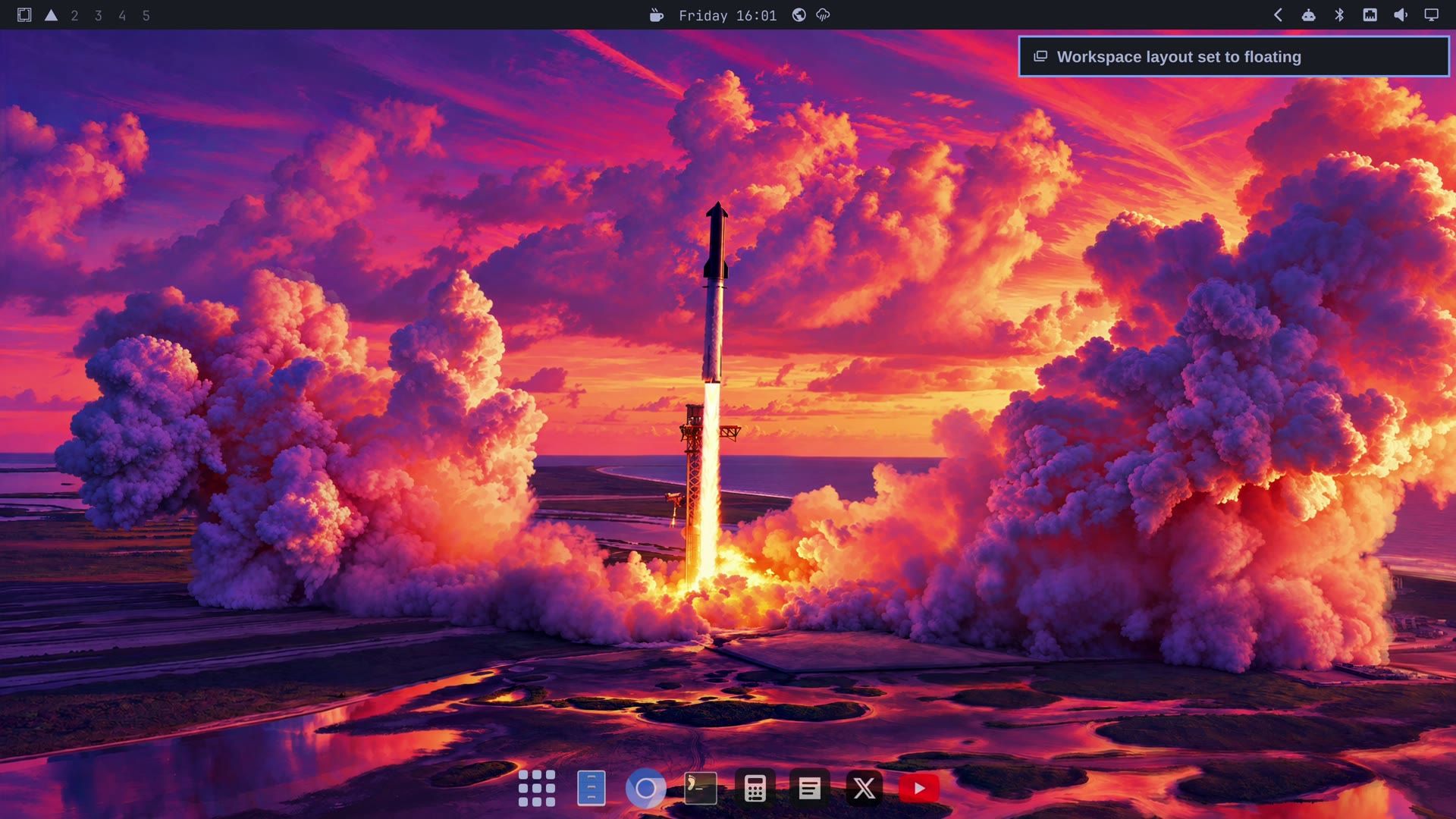
That shortcut changes only the current workspace, which is Omarchy’s name for a virtual desktop (the number buttons at the top left of the bar). To make floating the layout on every workspace, open the Omarchy menu with super space , choose Appearance, then Workspace Layout, and pick floating.
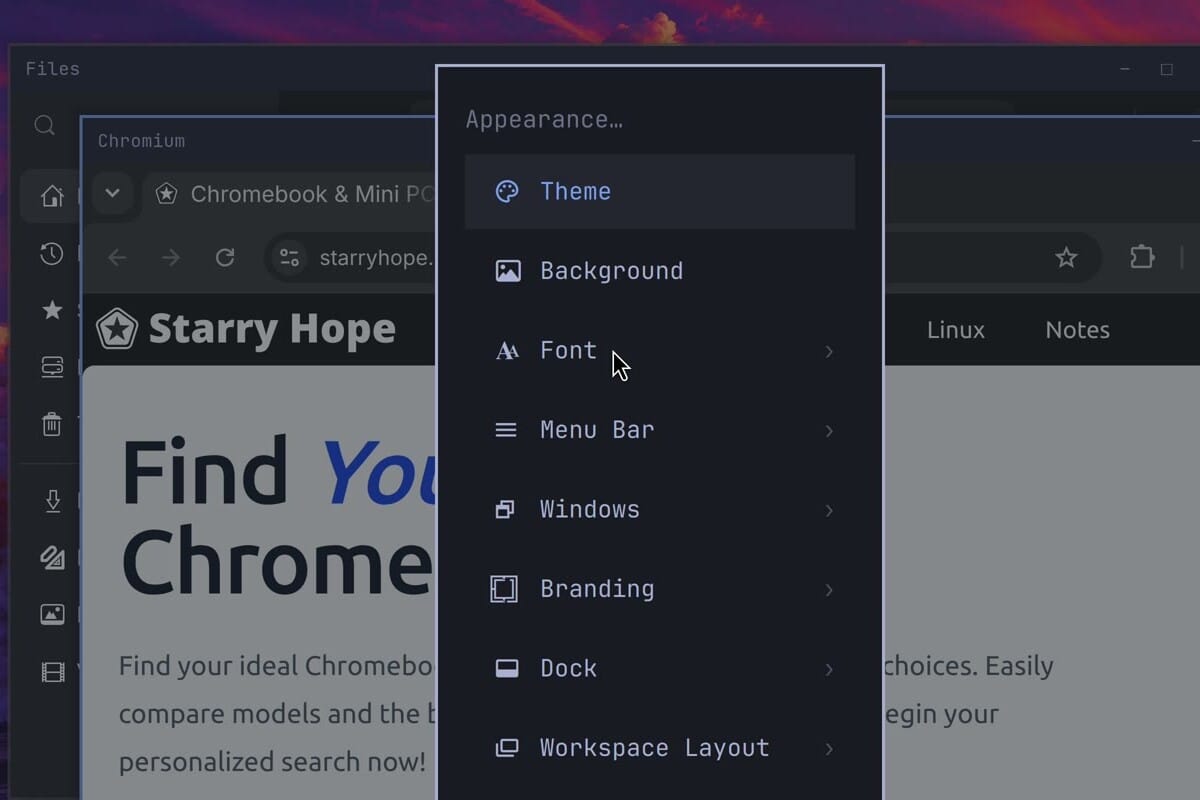
Omarchy has three layouts: tiling, scrolling, and floating. super l steps forward through them and super alt l steps back, so from the default tiling layout one press of super alt l lands on floating, and one press of super l from floating goes back to tiling. Our earlier guide to Omarchy’s floating windows and dock covers moving and hiding the dock.
Open apps from the dock, the app grid, and the Omarchy menu
The dock comes with a few apps already pinned. Files is the File Explorer here ( super shift f opens it too), and Chromium is the web browser. Click an icon once to open the app; a running app that is not pinned gets its own icon at the end of the dock while it is open.
For apps that are not pinned, the first button on the dock, the grid of dots, opens the app grid with every installed app. Start typing a name to filter it, for example writer for LibreOffice Writer, and press Enter. super alt space opens the same grid from the keyboard. If you typed a filter, the first Escape clears it and the second one closes the grid.
The Omarchy menu, super space , is the closest thing to the Start menu. Its rows are Apps, Learn, Appearance, Trigger, Setup, Install, Remove, Update, About, and System. Typing in the menu searches it, so calc finds LibreOffice Calc, and print finds Print Settings. The small icon at the far left of the bar opens the same menu with a click.
Use the window buttons, move, and resize
The three window buttons sit at the right end of each titlebar, where Windows puts them, in the same order:
- Minimize sends the window to the dock. Click its dock icon to bring it back where it was. super m does the same from the keyboard.
- Maximize fills the screen. A double-click on the titlebar does the same, and a second double-click puts the window back.
- Close closes the window. super w closes the window you are working in.
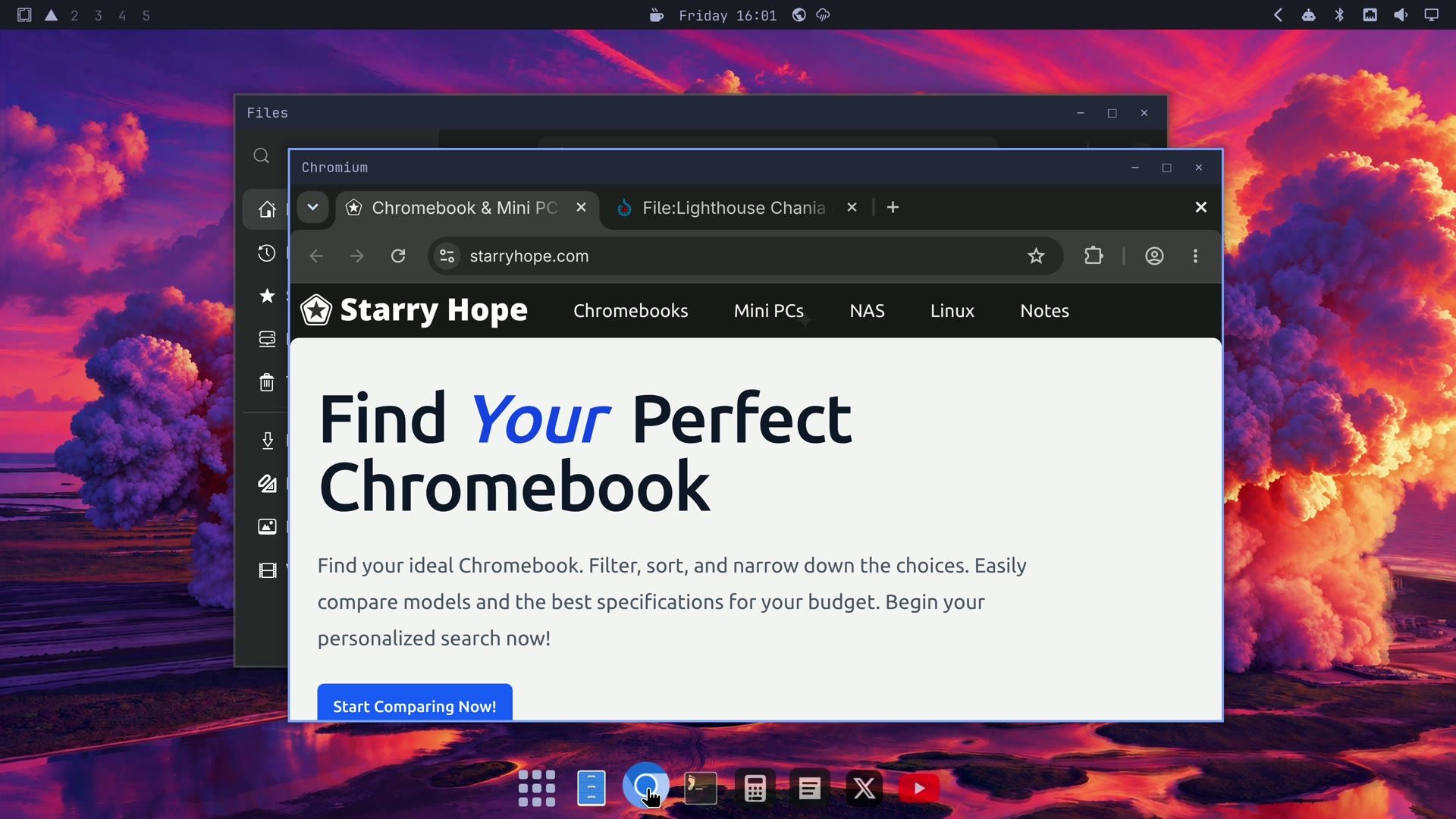
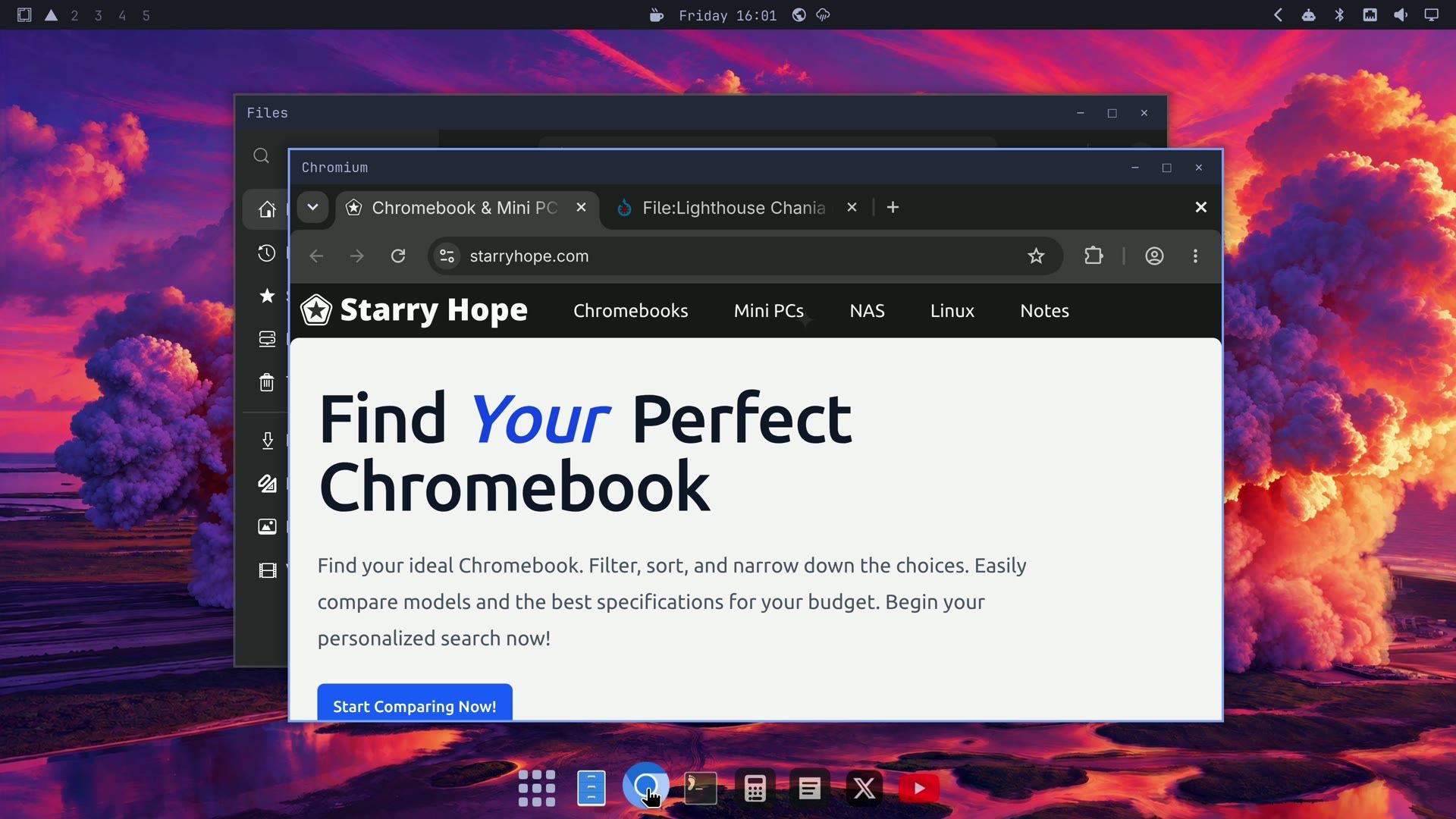
Drag a titlebar to move a window, and drag any edge to resize it. You can also hold Super and drag anywhere inside a window to move it, which helps when a window has slid partly off the screen.
Dragging a window to a screen edge does not snap it to half the screen; tiling, near the end of this guide, puts two windows side by side in exact halves. alt tab switches straight to the next window without a strip of thumbnails, and alt shift tab goes the other way. alt f4 is not bound, so use super w or the close button.
Watch YouTube and other video
YouTube is already set up as an app, pinned in the dock, and super shift y opens it too. It is the YouTube website in a window of its own, without the browser’s tabs or address bar. Search for a video, click it, and press f (YouTube’s own key) to fill the screen with the video; Escape leaves full screen. You do not need to sign in to watch.
Chromium also plays protected video, the kind Netflix and other paid services use. You still need an account with the service, and Netflix’s help page on supported browsers lists Linux with Chrome, Firefox, Edge, and Opera and says it can’t guarantee Linux devices will work. If the sound comes out of the wrong device, click the speaker icon in the top bar and pick your speakers or monitor under Output.
Give email its own window with a web app
Any website can become an app with its own window and dock icon, which suits email well. The steps for Gmail:
- Press super space and choose Install.
- Type
webto find Web App, and press Enter. A terminal window opens and asks two questions. - At
Name>, typeGmailand press Enter. - At
URL>, typehttps://mail.google.comand press Enter. Omarchy fetches the site’s icon by itself. - Press any key to close the terminal.
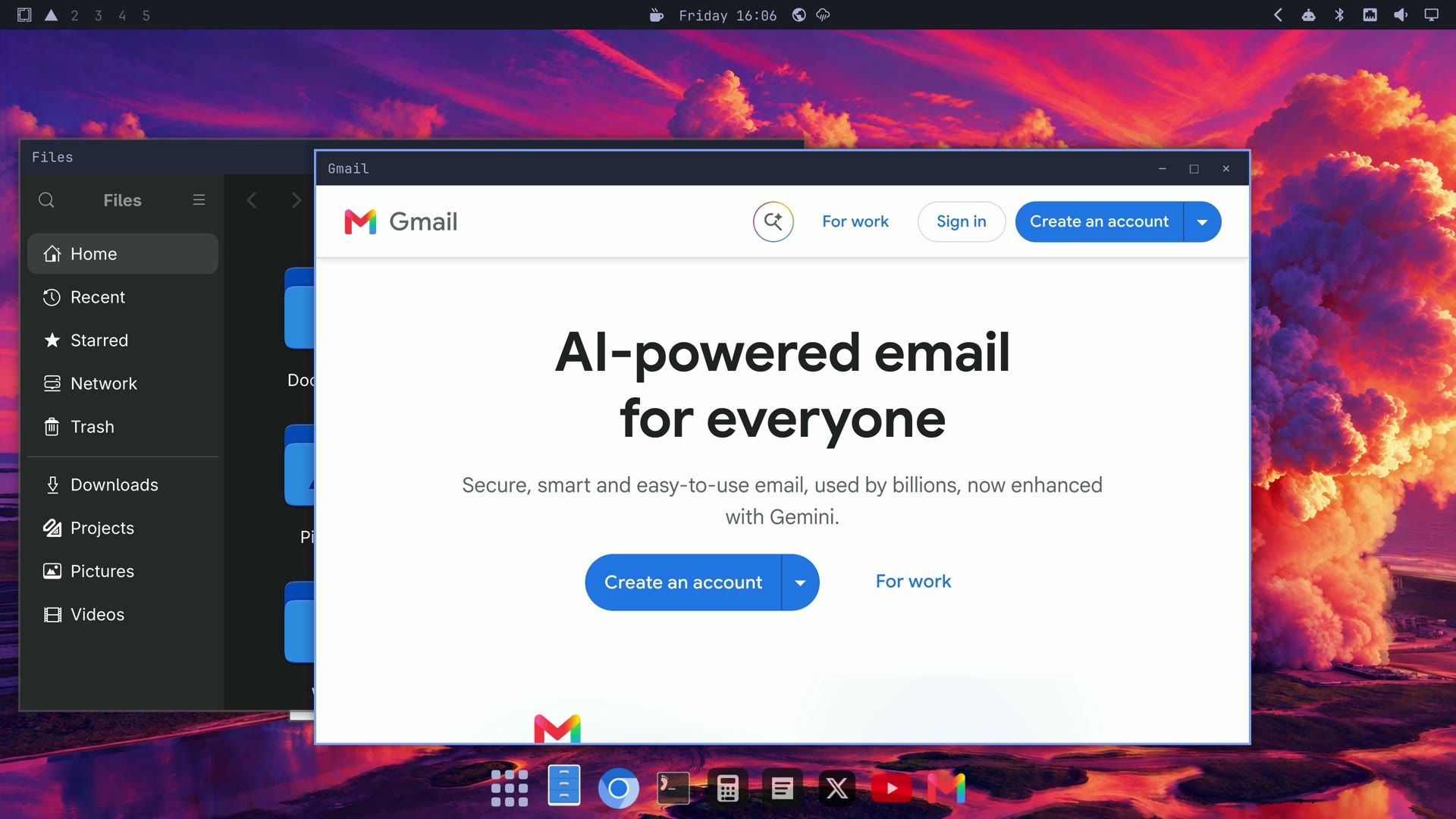
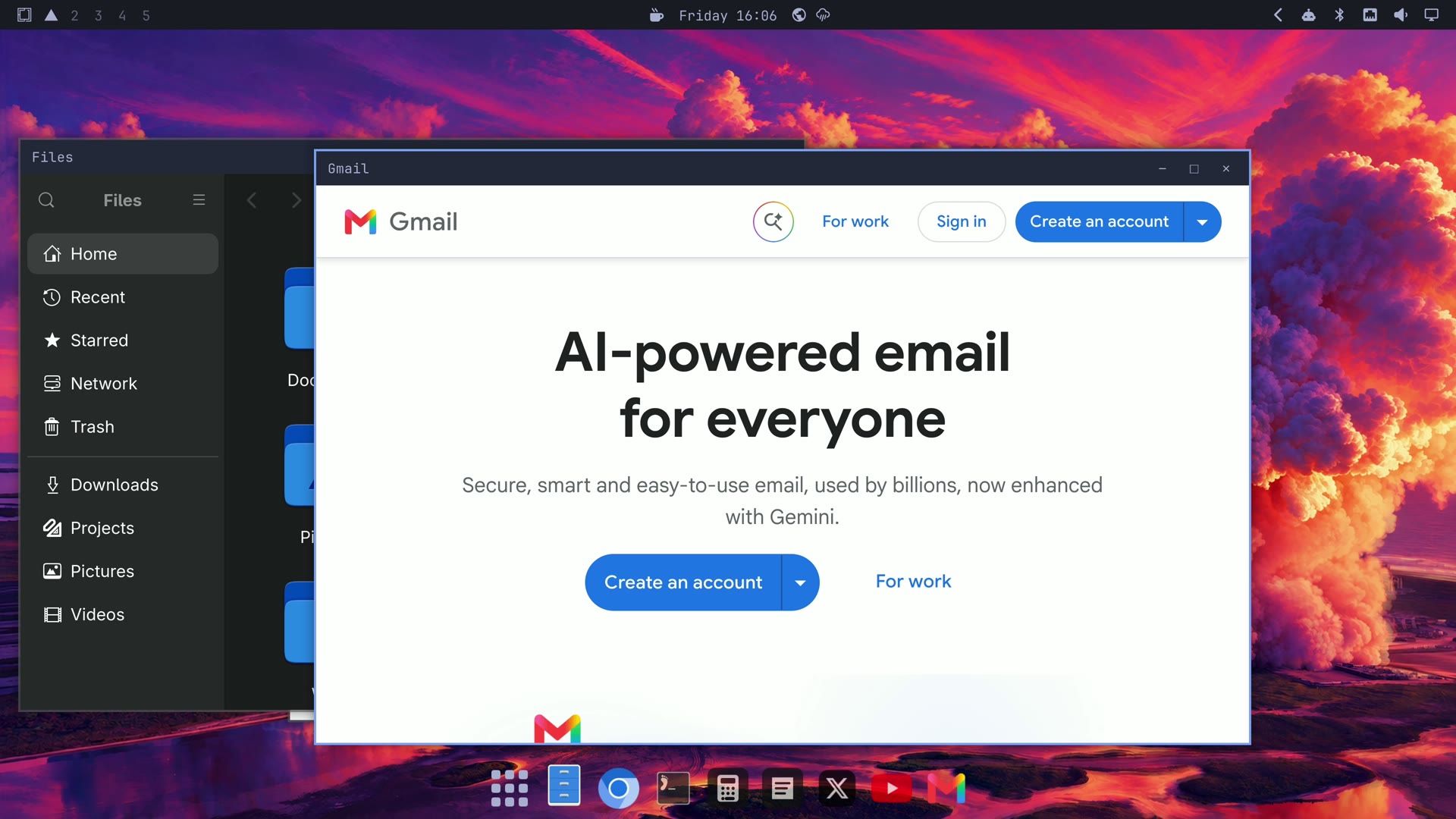
Gmail now opens from the app grid or the Omarchy menu, in its own window, on Google’s start page, where you sign in with your Google account. Its red icon shows in the dock while it is open. The same steps work for Outlook.com, Proton Mail, or any other webmail; to remove one, use Remove, then Web App, in the Omarchy menu. Omarchy also ships with a web app for HEY, its default email service, on super shift e .
Install the Microsoft apps (web versions)
One row in the Omarchy menu adds Outlook, Word, Excel, PowerPoint, Teams, and OneDrive. These are Microsoft’s web versions, the same ones you would use at office.com in a browser, each given its own window and dock icon. They are not the full desktop apps you install on Windows: Microsoft does not make those for Linux.
- Press super space , choose Install, then Service, then Microsoft. Typing
microsoftin the menu finds the row too. - A terminal installs all six and ends with “You can now find Microsoft Outlook, Word, Excel, PowerPoint, Teams, and OneDrive using the app launcher”. Press any key to close it.
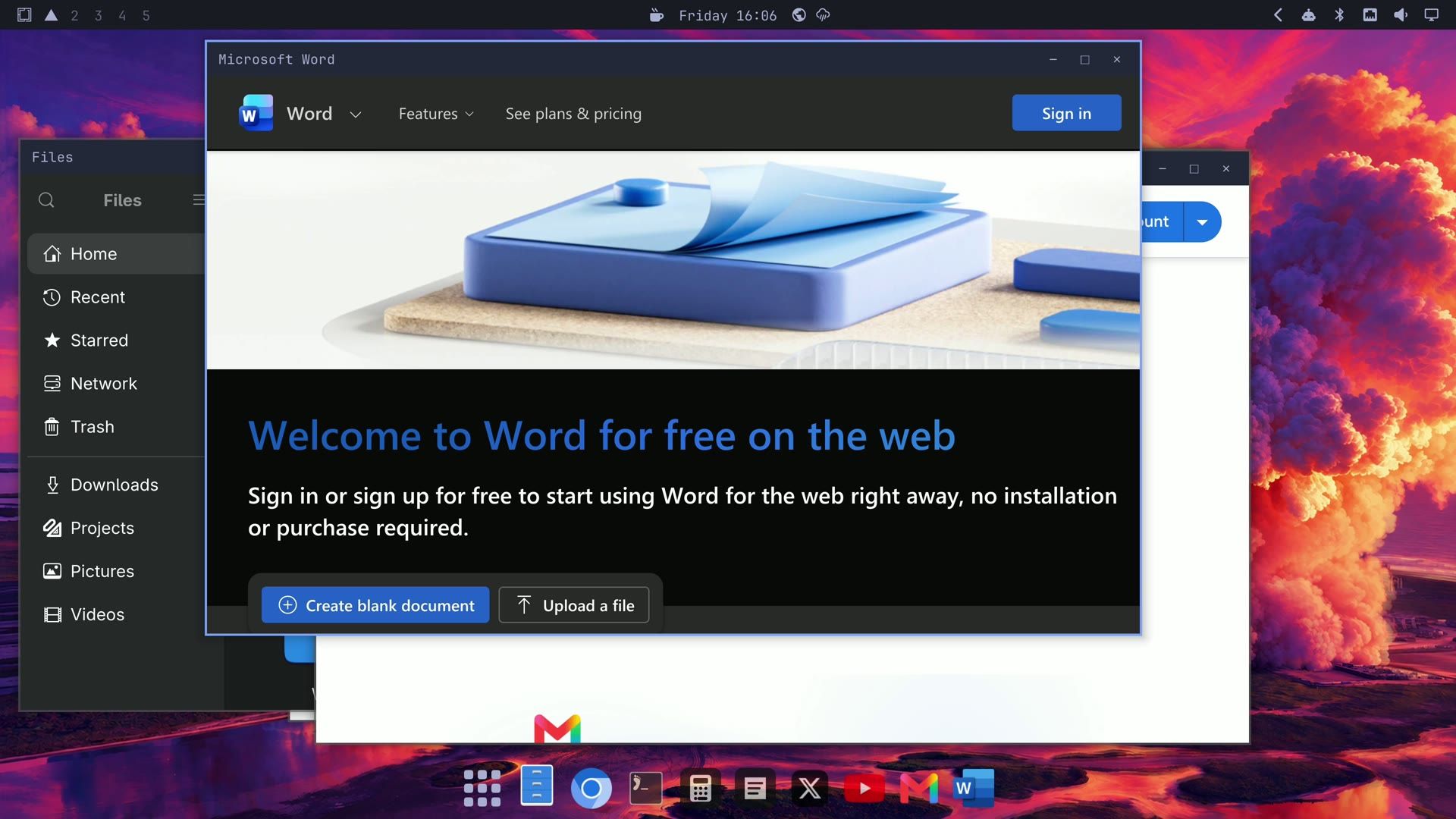
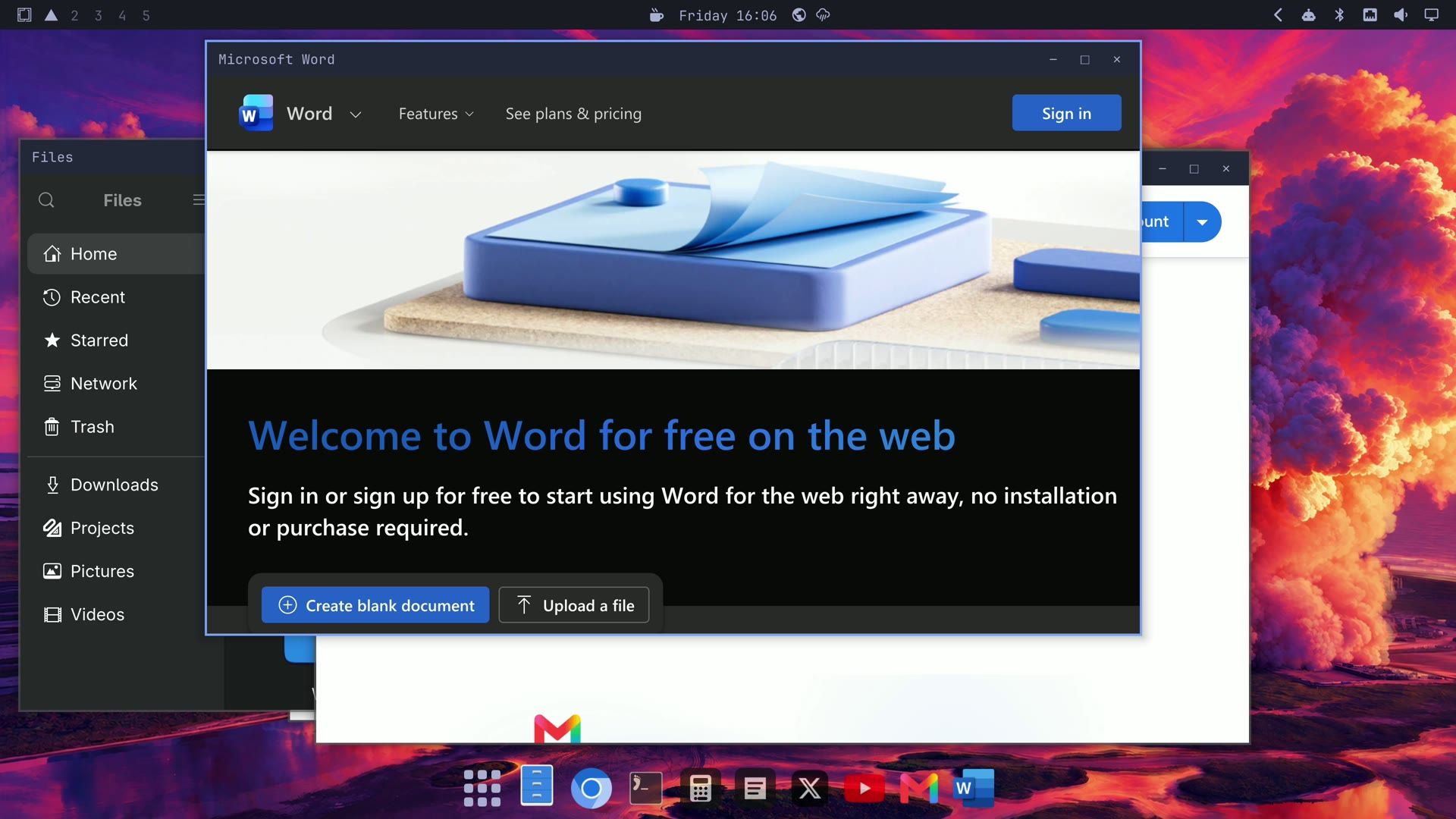
- Open Word from the app grid. It starts on Microsoft’s page “Welcome to Word for free on the web”, with a Sign in button at the top right. Sign in with your Microsoft account. Teams and Outlook open straight on Microsoft’s sign-in page.
Word for the web works with the same .docx files as the desktop app, but it has fewer features. Microsoft’s page on the differences between Word in the browser and the Word desktop app lists what works differently, and its usual answer for a missing feature is to open the file in the desktop app, which you do not have on Omarchy. For work offline, or for a feature the web version lacks, LibreOffice comes installed, and the next section uses it.
Write a document and save it as a Word file
LibreOffice Writer is a word processor like Microsoft Word, and it comes installed. Open the app grid, type writer, and press Enter.
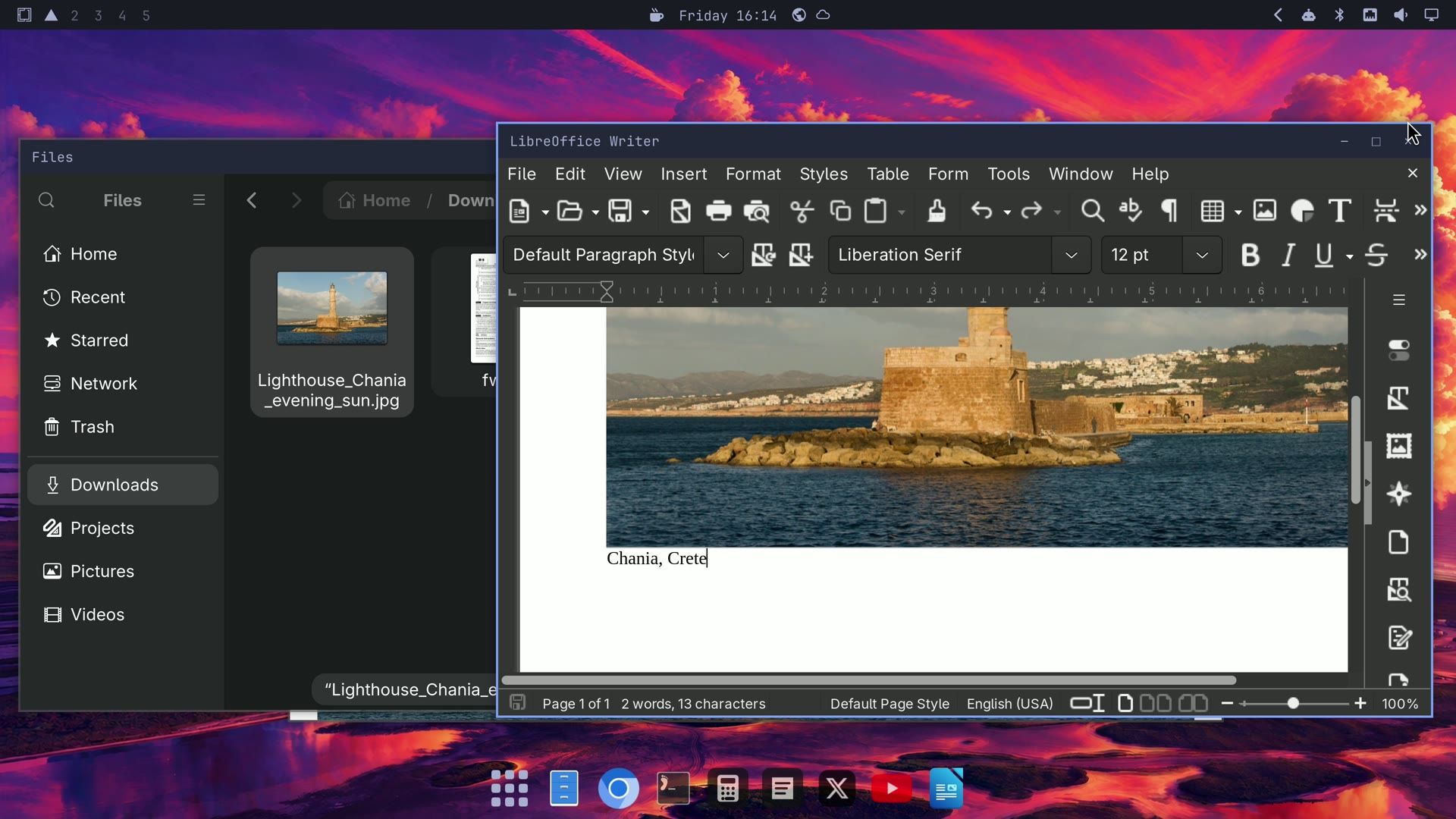
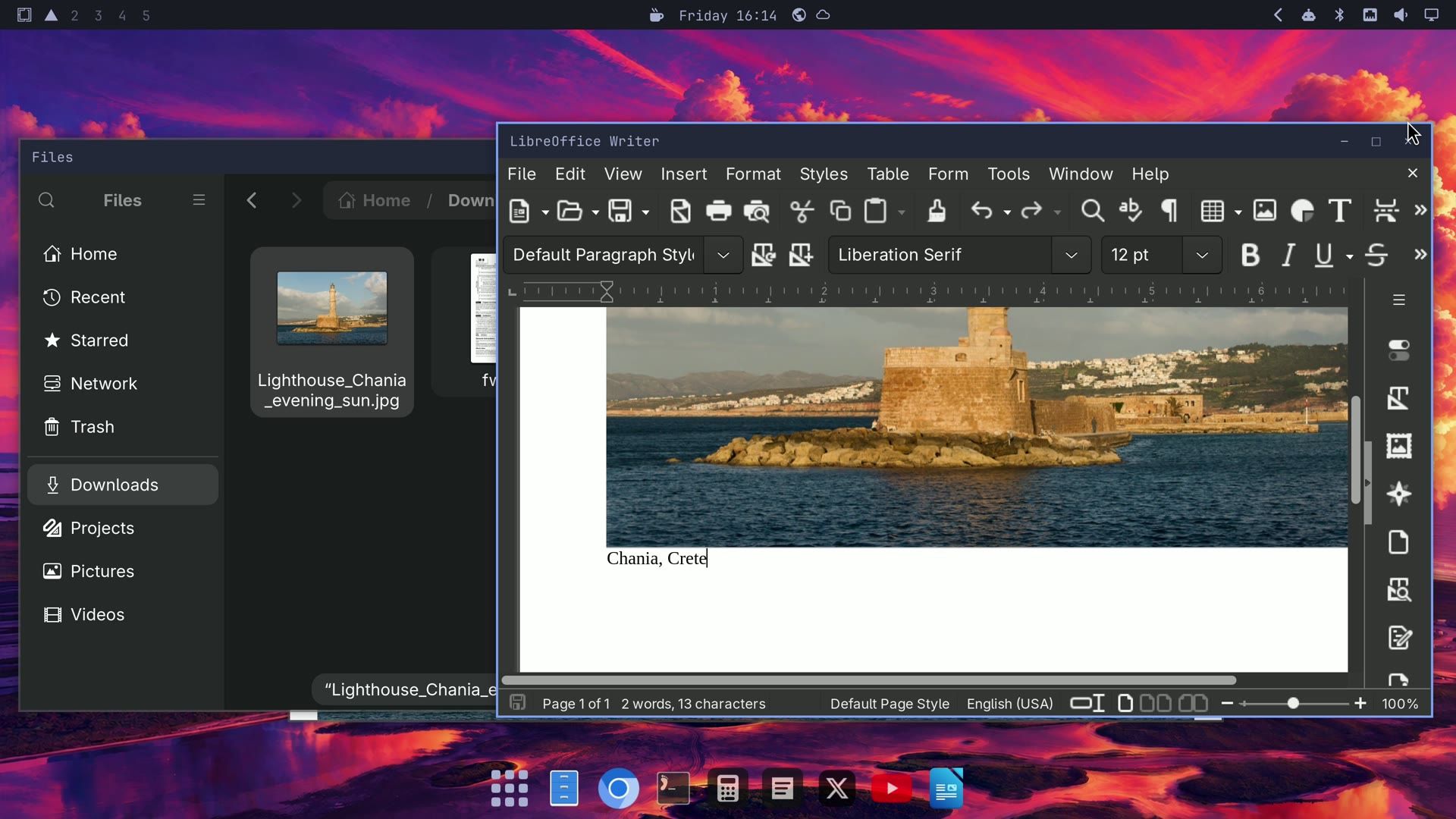
To add a photo from the web, open the image’s page in Chromium, right-click the photo, and choose Save image as, the same entry as in Chrome on Windows. The save window opens on your Downloads folder with the name filled in, so click Save. Then open Files from the dock, click Downloads in its sidebar, and drag the photo from Files into your Writer document.
Writer saves in its own OpenDocument format unless you tell it otherwise. To make every new document save as Word, set it once:
- In Writer, open Tools, then Options. alt f12 opens the same window.
- In the list on the left, open Load/Save, then General.
- Set Always save as to “Word 2007 (*.docx)” and click OK.
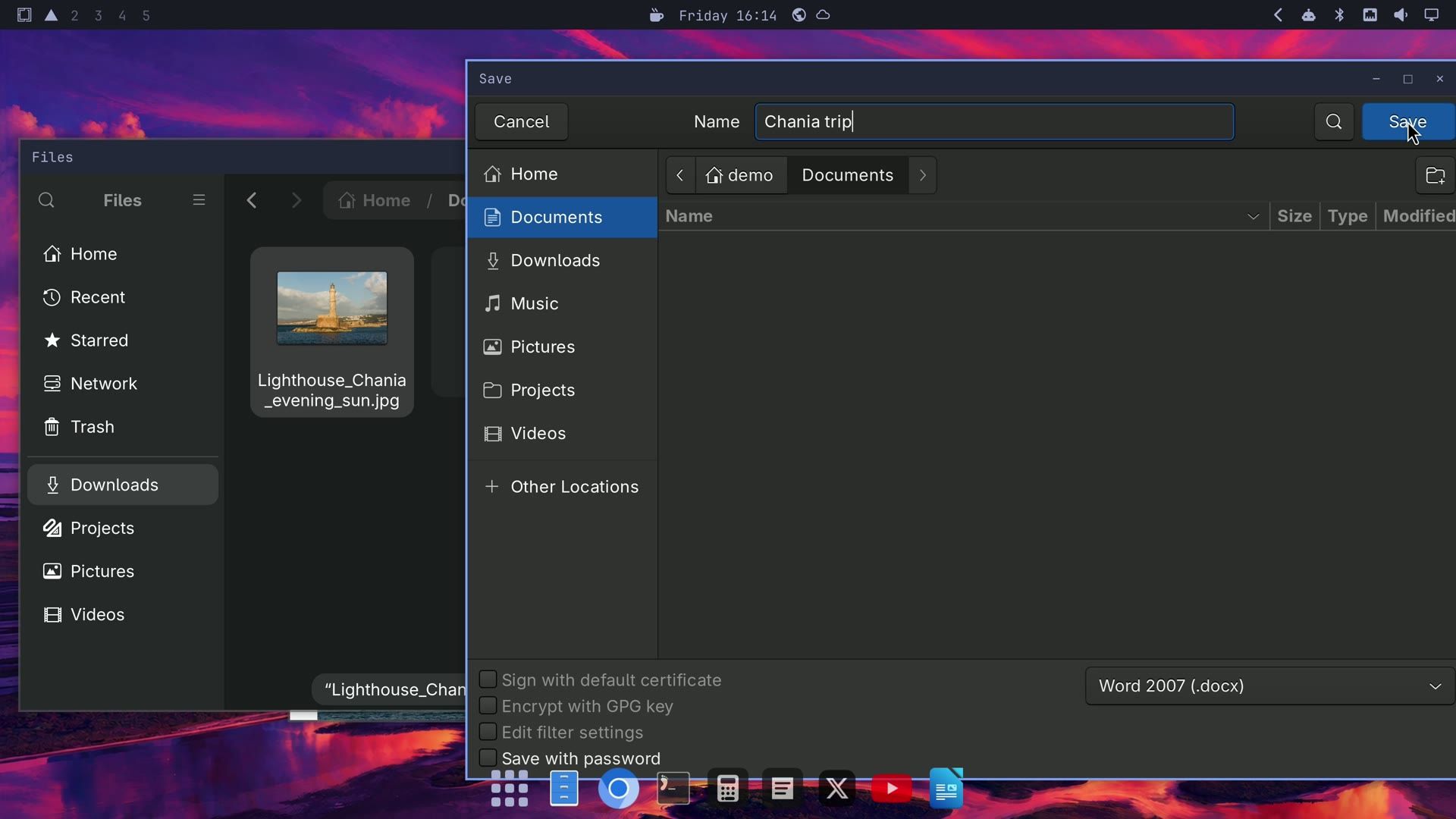
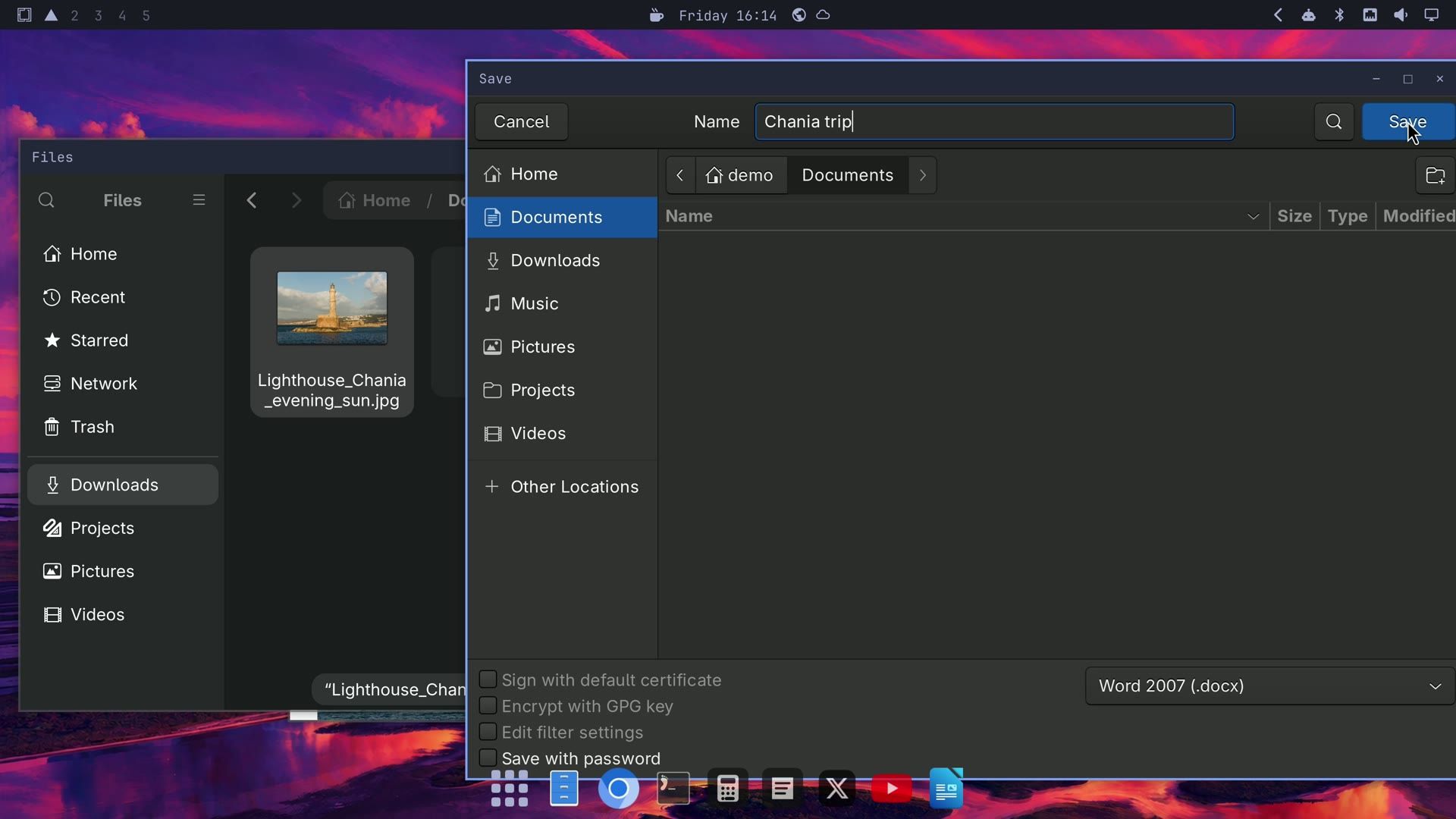
Now ctrl s opens the save window with Word already chosen as the file type. Type a name and click Save. The result is a normal .docx Word file with the photo inside.
Add a printer and print
Omarchy does not add printers by itself, so you add yours once. A network printer that supports driverless printing (IPP Everywhere) needs no driver to install.
- Press super space , type
print, and open Print Settings. It says “There are no printers configured yet.” - Click Unlock and type your password.
- Click Add. In the New Printer window, open Network Printer, wait a few seconds for the list, and click your printer.
- Click Forward. When the Describe Printer page shows the printer’s name, click Apply.
- It asks “Would you like to print a test page?” Click Print Test Page or Cancel.
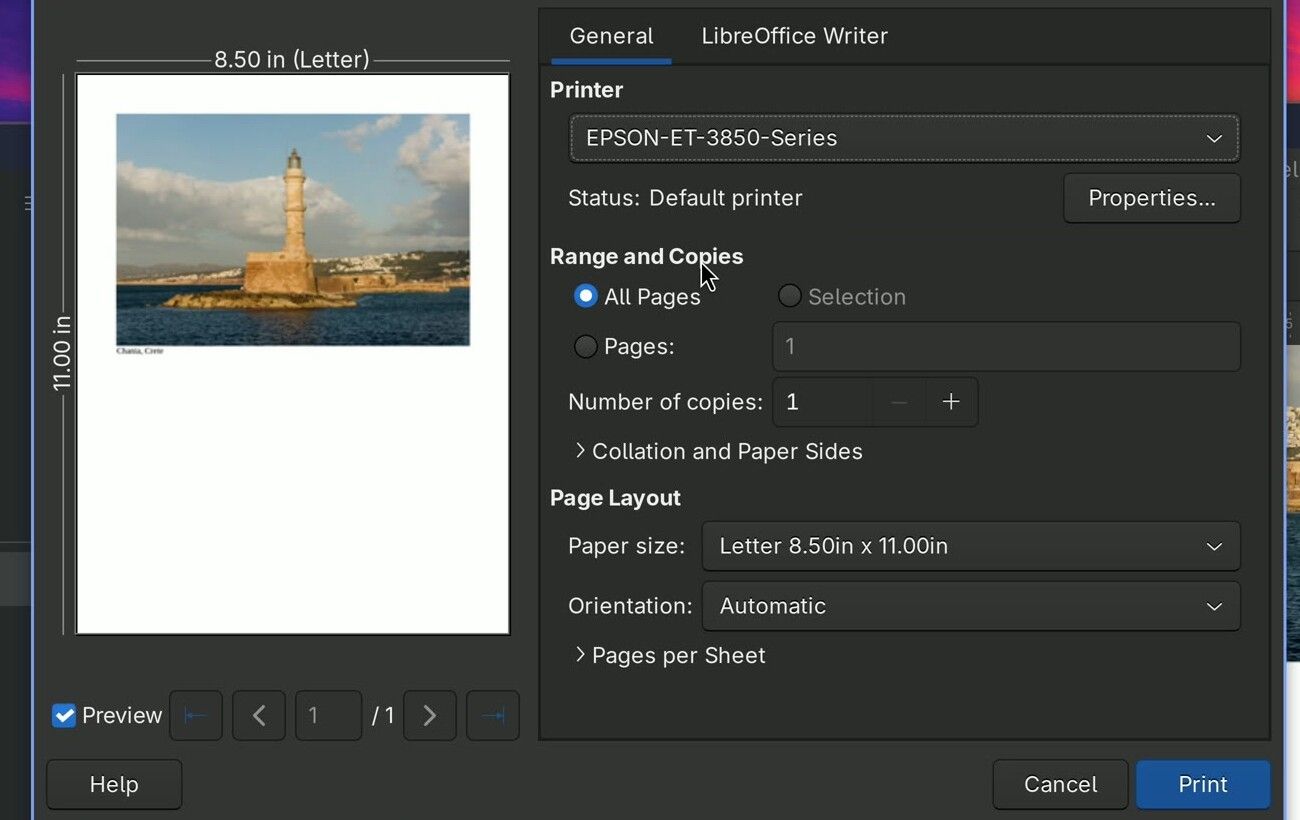
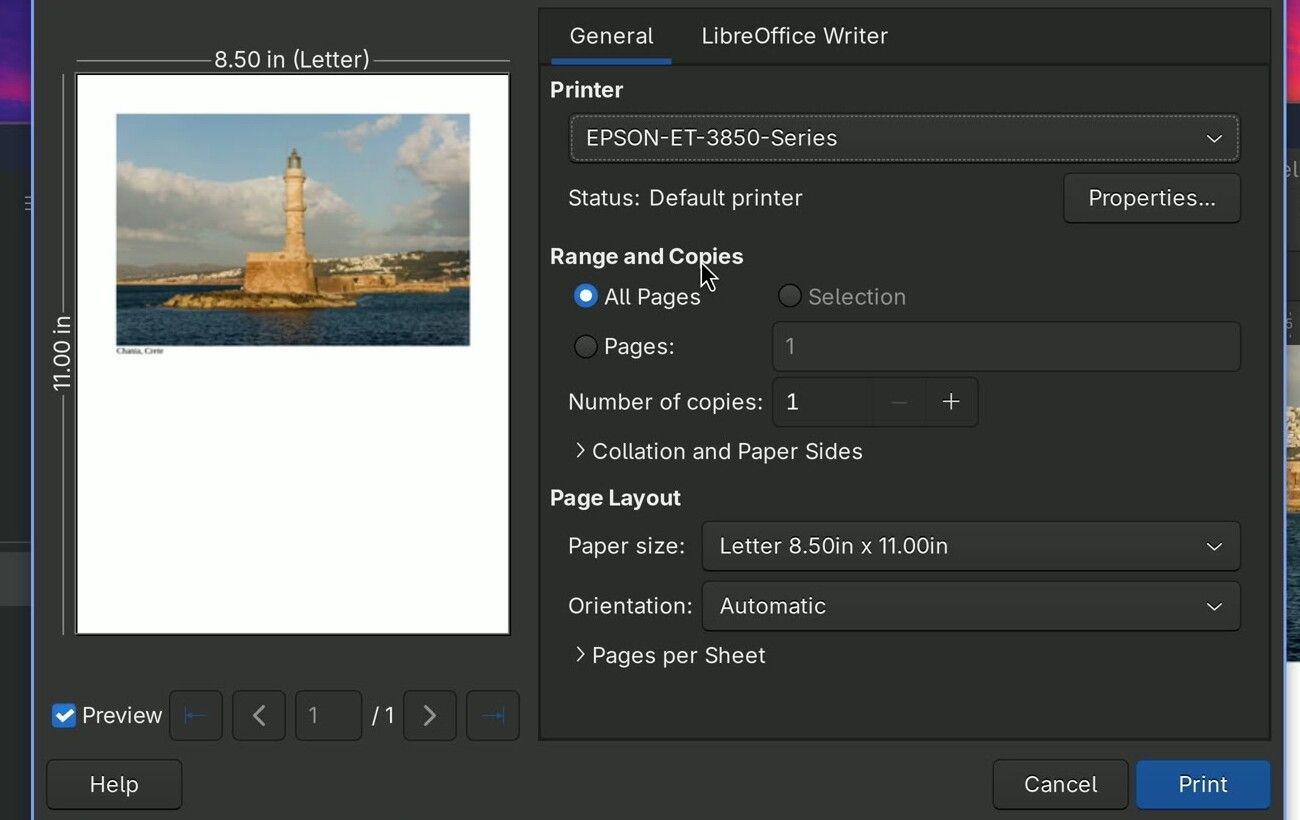
From then on, ctrl p prints from any app, as on Windows. If an app was already open while you added the printer, check the Printer list in its print window. Writer can keep a temporary entry for the same printer selected, whose name uses underscores where the printer you added uses dashes (EPSON_ET_3850_Series and EPSON-ET-3850-Series for an Epson ET-3850). Pick the one with dashes, and it prints.
Fill in and sign a PDF with Signed
Omarchy comes with Signed, an app that adds text, dates, and a signature to a PDF. It replaces the print, sign, and scan routine for forms such as a W-9.
- Open Signed from the app grid. Press super f to make it full screen, so its menus have room.
- Press ctrl o and open your PDF, or drag the PDF from Files onto the window.
- Scroll to the signature line first. New items land in the middle of the part of the page you are looking at.
- Click Signature, then ”+ Add signature…”, and choose a photo or scan of your signature on white paper. Signed cuts the signature out from the paper; click Save signature.
- Drag the signature onto the line. Click Date to add today’s date, and Text for anything else you want to type, then drag each into place.
- Click Save signed copy. Signed writes a new file and leaves the original form as it was.
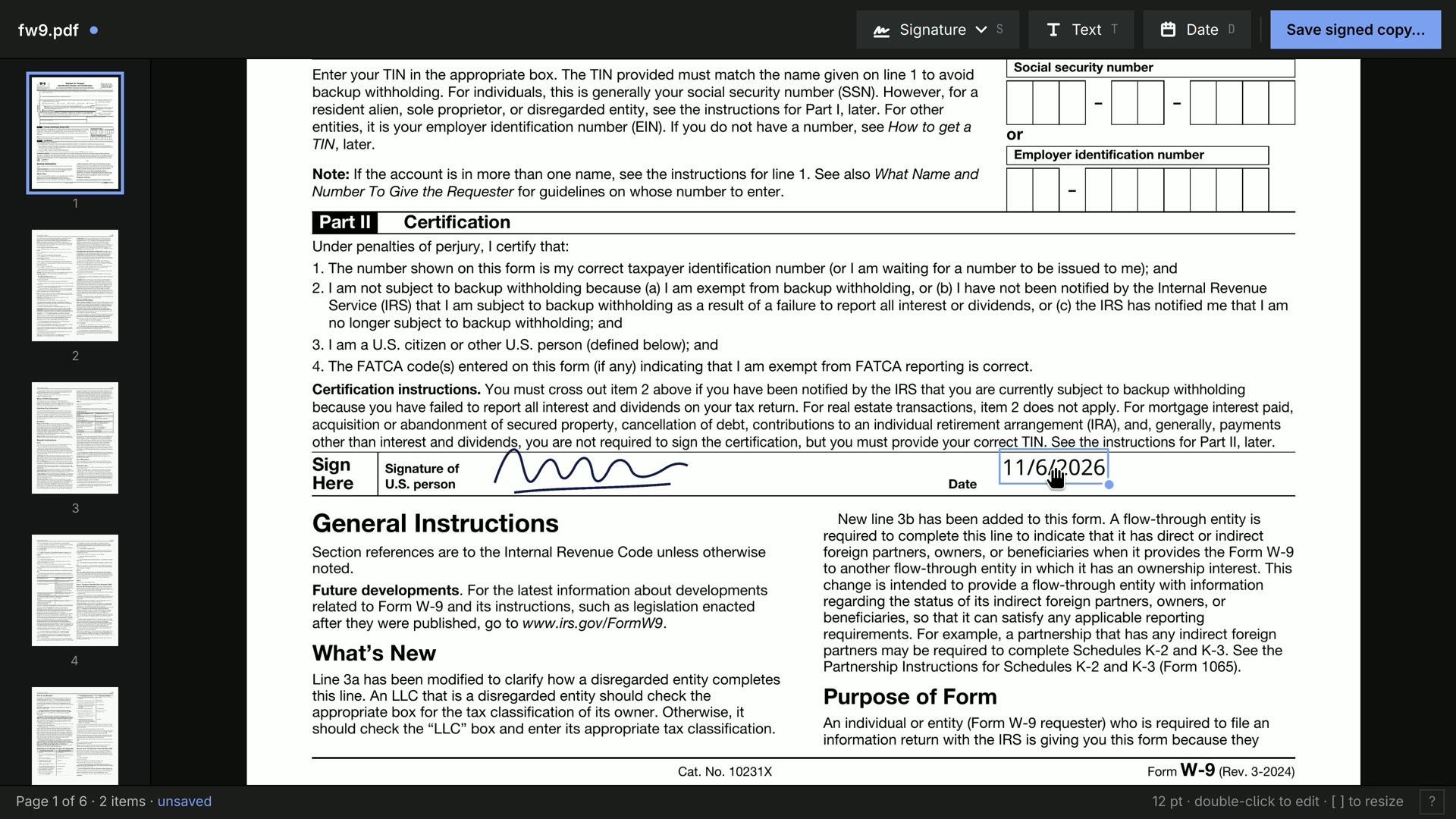
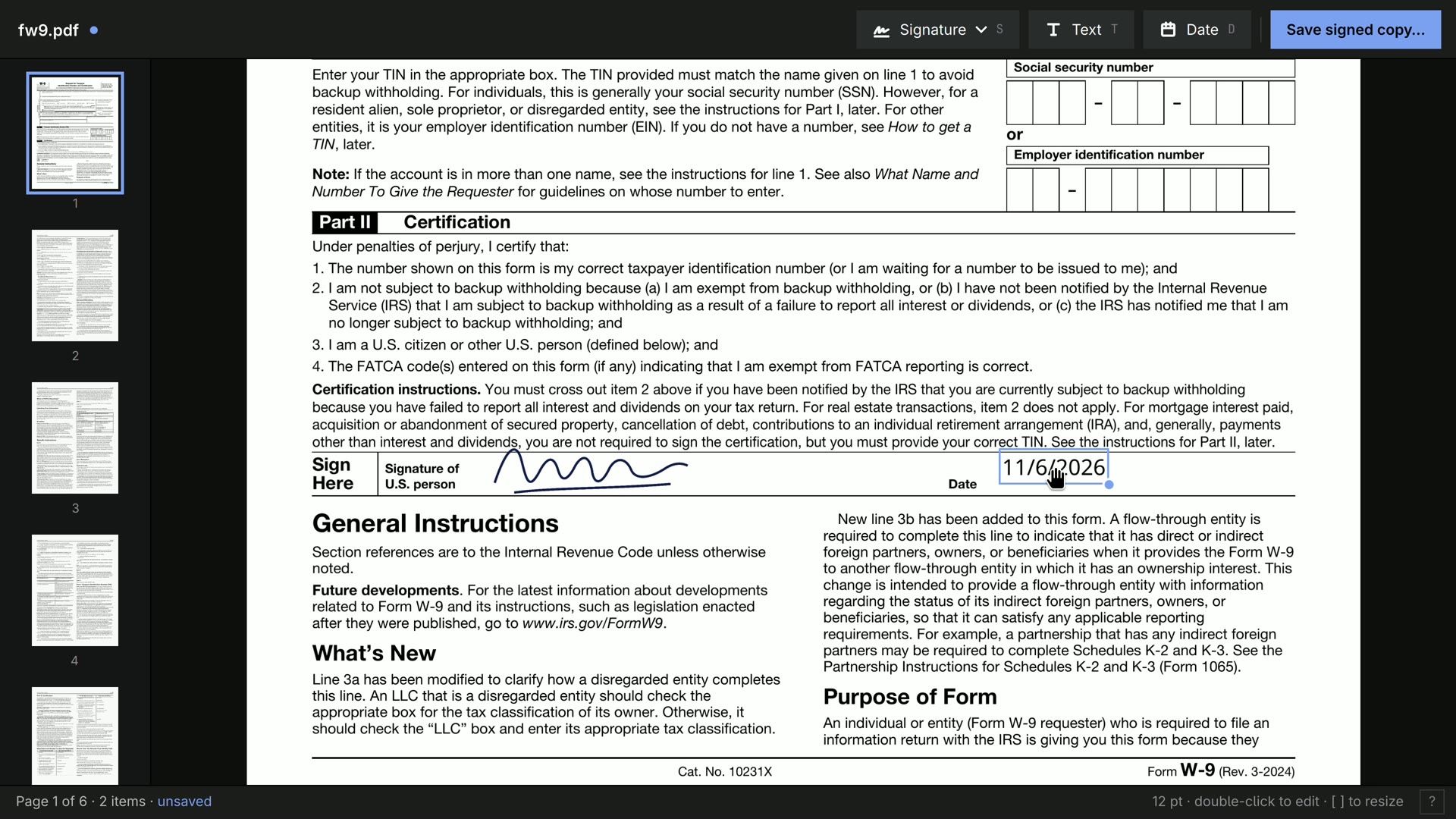
Signed writes on top of the page; it does not fill in a PDF’s own form fields. For a form with fields you can click into, double-click the PDF in Files to open it in Document Viewer, type into the fields, and save with ctrl s . Our guide to Omarchy 4.5’s new apps has more on Signed. The project page is omacom/signed on GitHub.
View and crop a photo
Double-click a photo in Files to open it in the Image Viewer, a plain window with no toolbar. Press ctrl e to send the photo to Omarchy’s image editor. Close its shortcut card, then drag a corner handle of the photo inward to crop it. ctrl s saves the crop as a new picture in Pictures, in the Screenshots folder, and the original stays as it was.
Take and mark up a screenshot
The same editor marks up screenshots, like the Snipping Tool on Windows.
- Press the Print Screen key. The pointer turns into a crosshair.
- Press e before you drag; a notice says annotate after capture is on.
- Drag over the area you want. The editor opens on it.
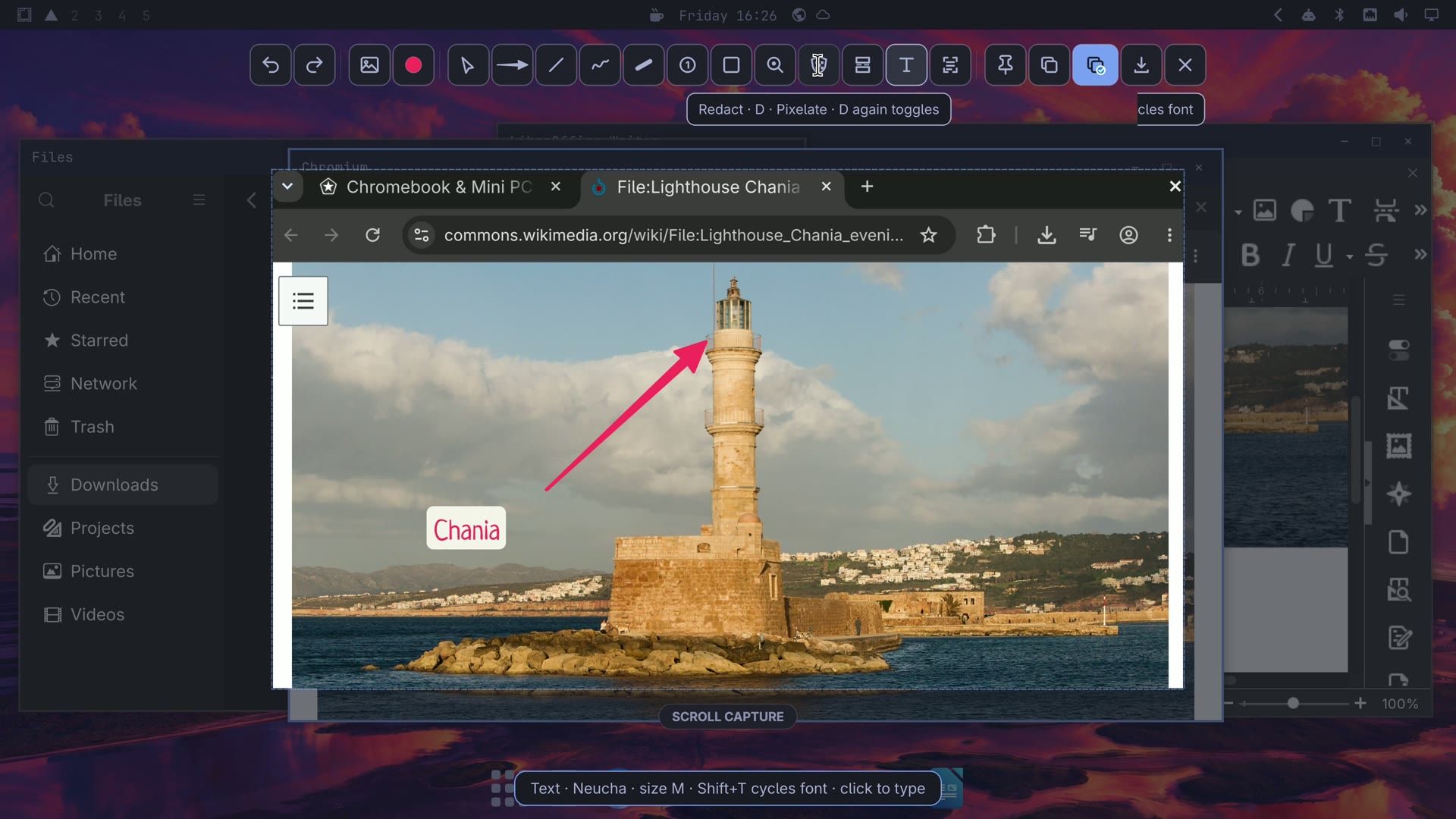
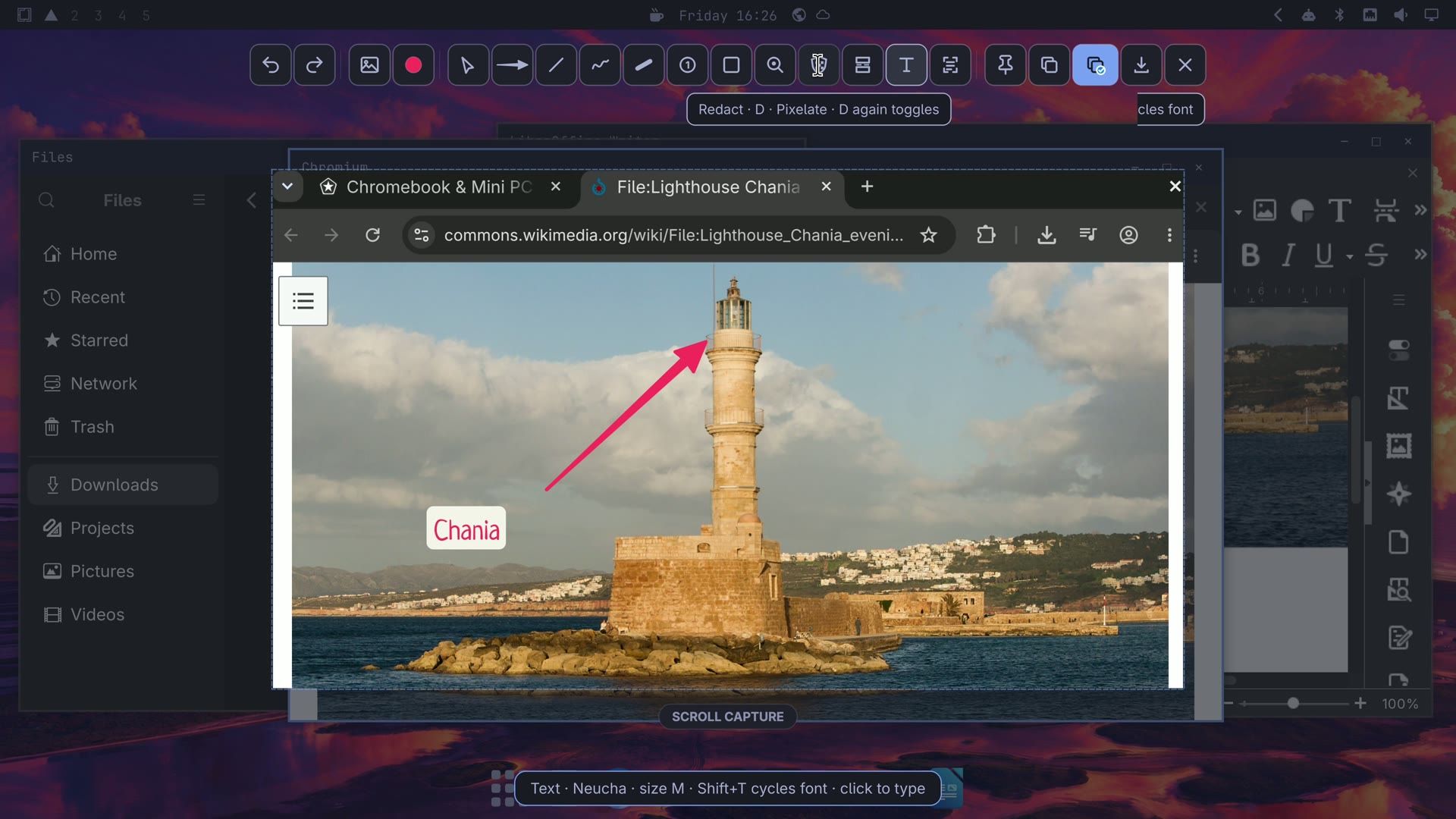
- Press a and drag to draw an arrow. Press t and click to type a label.
- To hide something, such as an address bar or a name, click the Redact button in the toolbar and drag over it. It pixelates that area. Click the button rather than pressing its key while a text label is active, or the letter goes into the label.
- Press Enter. The screenshot is copied to the clipboard and saved in Pictures, in the Screenshots folder.
Change the wallpaper
Press super ctrl space . A row of backgrounds for the current theme opens across the screen. Use the arrow keys to move through them and press Enter to set one, or Escape to leave the wallpaper as it is.
Install apps
Omarchy has no app store window. Apps come from the Omarchy menu instead:
- Press super space , choose Install, then Package. A searchable list of thousands of free programs opens in a terminal, with details of the selected one below it.
- Type a name, for example
gimpfor the GIMP photo editor. The program’s name, version, and description show below the list. - Press Enter and type your password. When the terminal says “Done! Press any key to close…”, press a key.
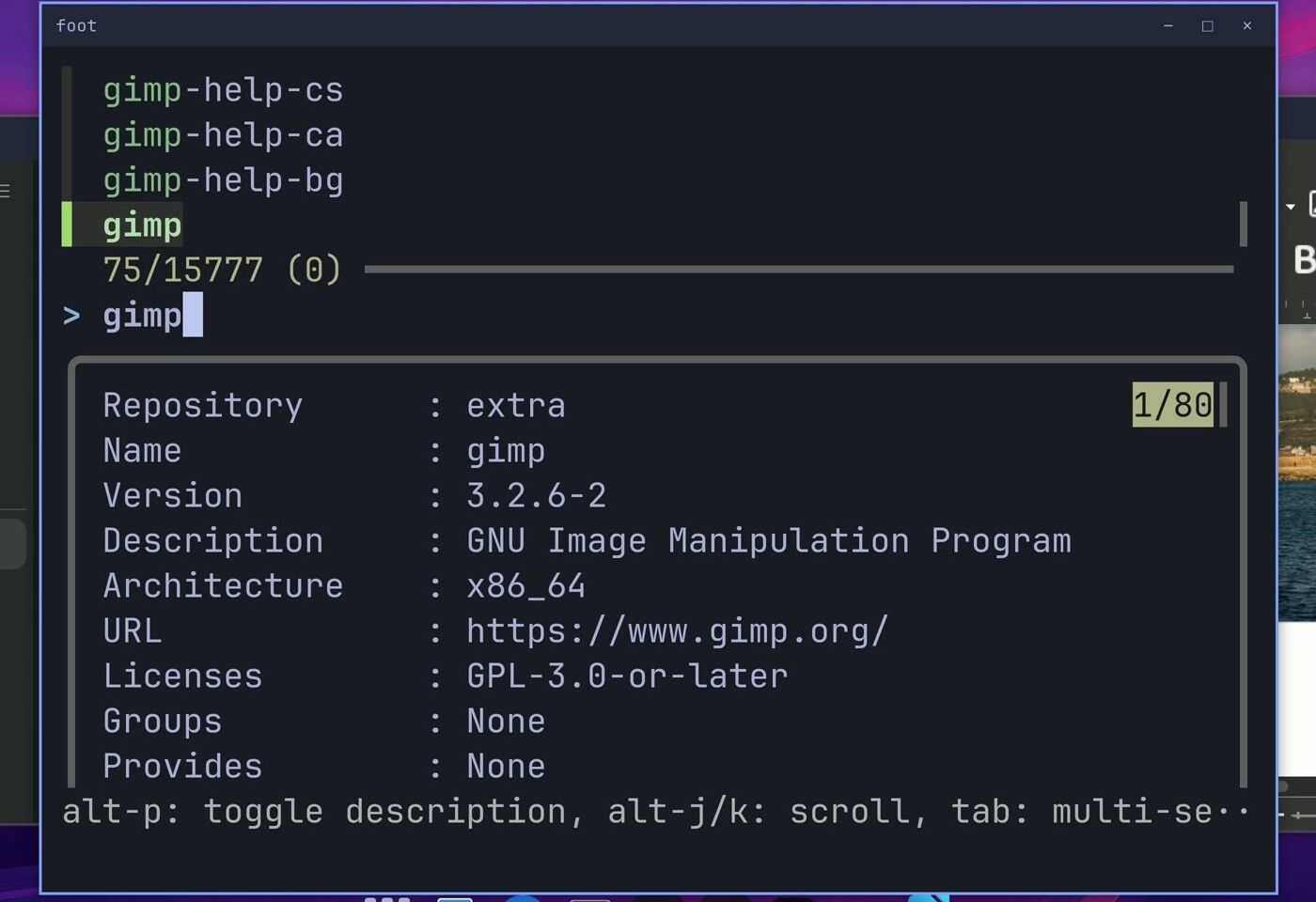
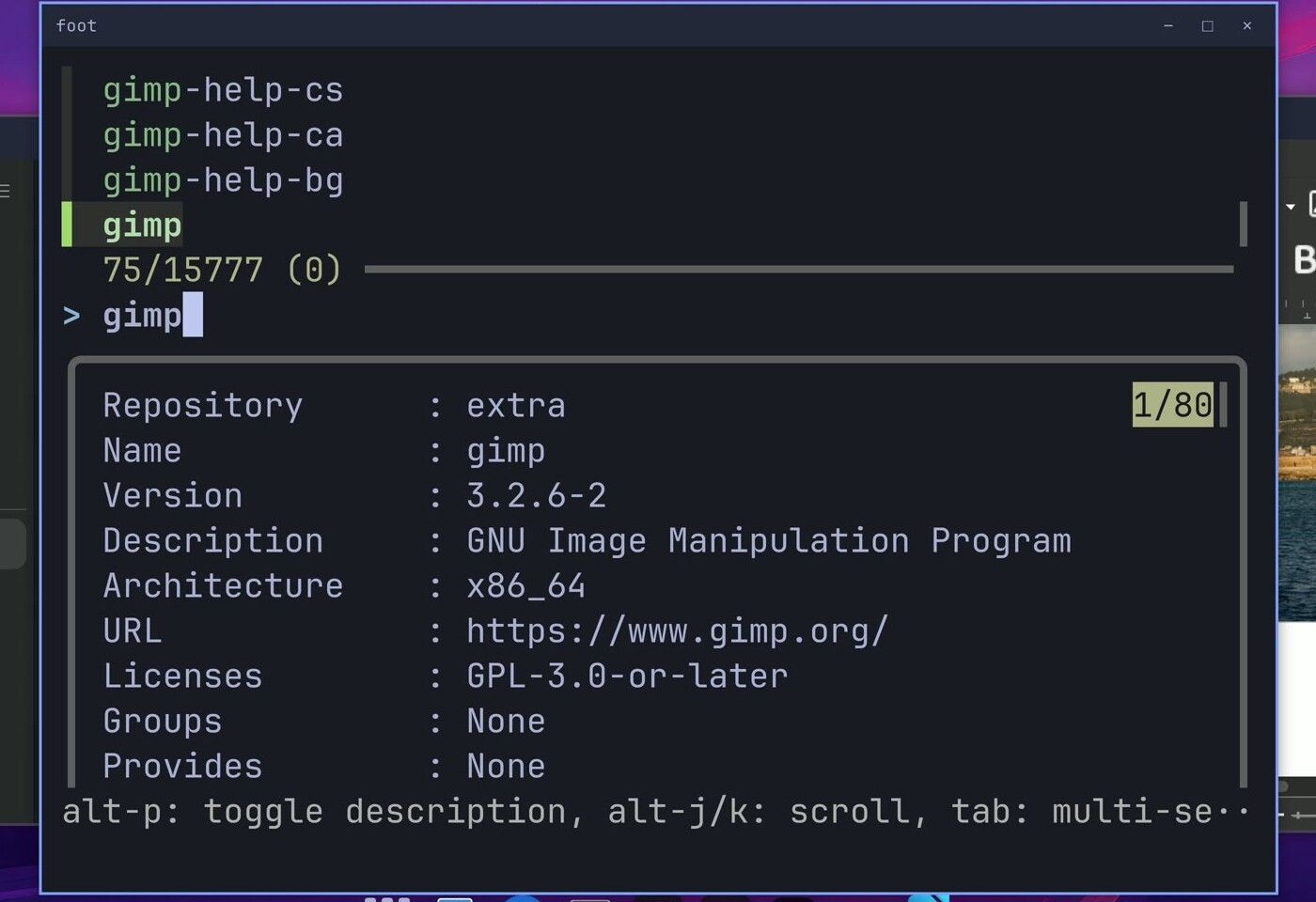
The new app is in the app grid with everything else; GIMP shows as GNU Image Manipulation Program. You need a package’s name to find it, so search the web first if you are not sure what the Linux version of a program is called. The Install menu also has rows for other web browsers (Chrome, Edge, Firefox, and more) and for games, and Remove, then Package, takes an app off again. If you only want to clear out apps that came with Omarchy, our guide to removing Omarchy’s preinstalled apps covers that.
Update Omarchy
Updates run from the same menu: press super space , choose Update, then Omarchy. A terminal asks you to make sure the computer is plugged in or has a full battery, links to what’s new, and asks “Continue with update?” Nothing changes until you choose Yes, so you decide when it runs.
After Yes and your password, one update covers the system and the apps you installed. Before it changes anything, it saves a snapshot of the system, much like a restore point on Windows. If an update goes wrong, you can boot into that snapshot; our guide to Omarchy snapshots and rollback shows how. Update through this menu rather than with Arch’s pacman command, since the menu takes the snapshot first.
Find any shortcut with Super K
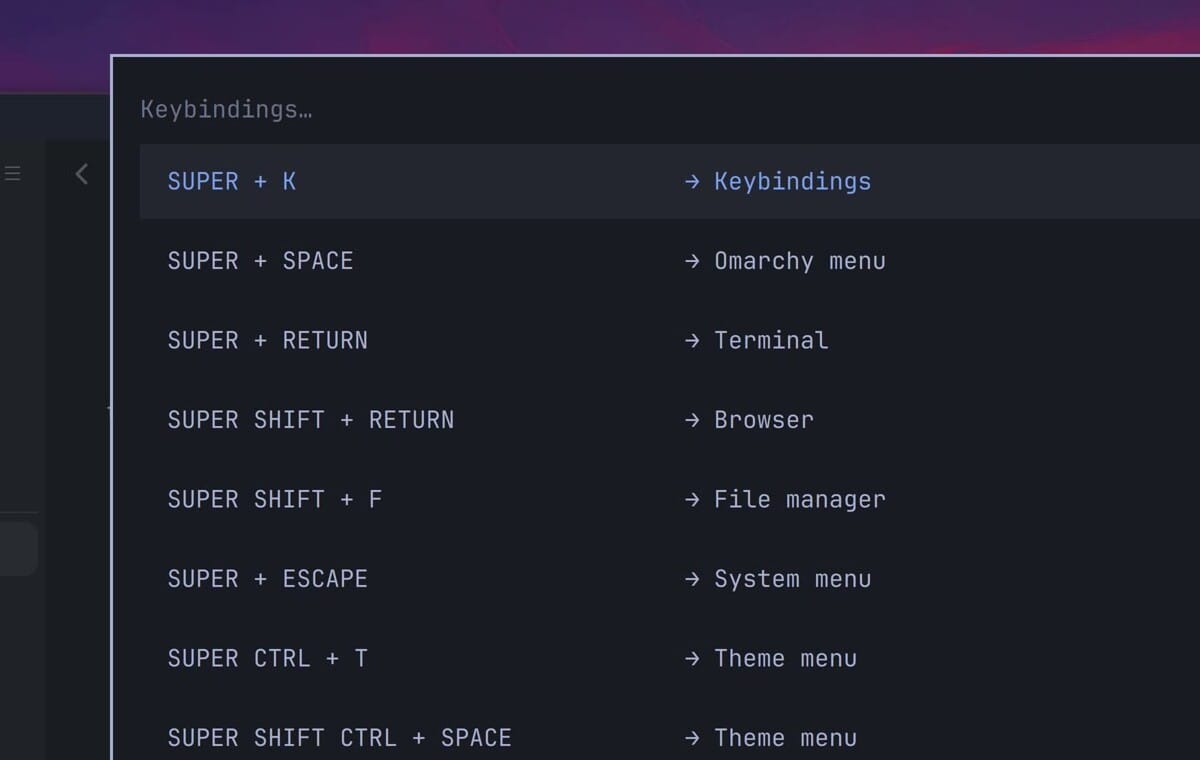
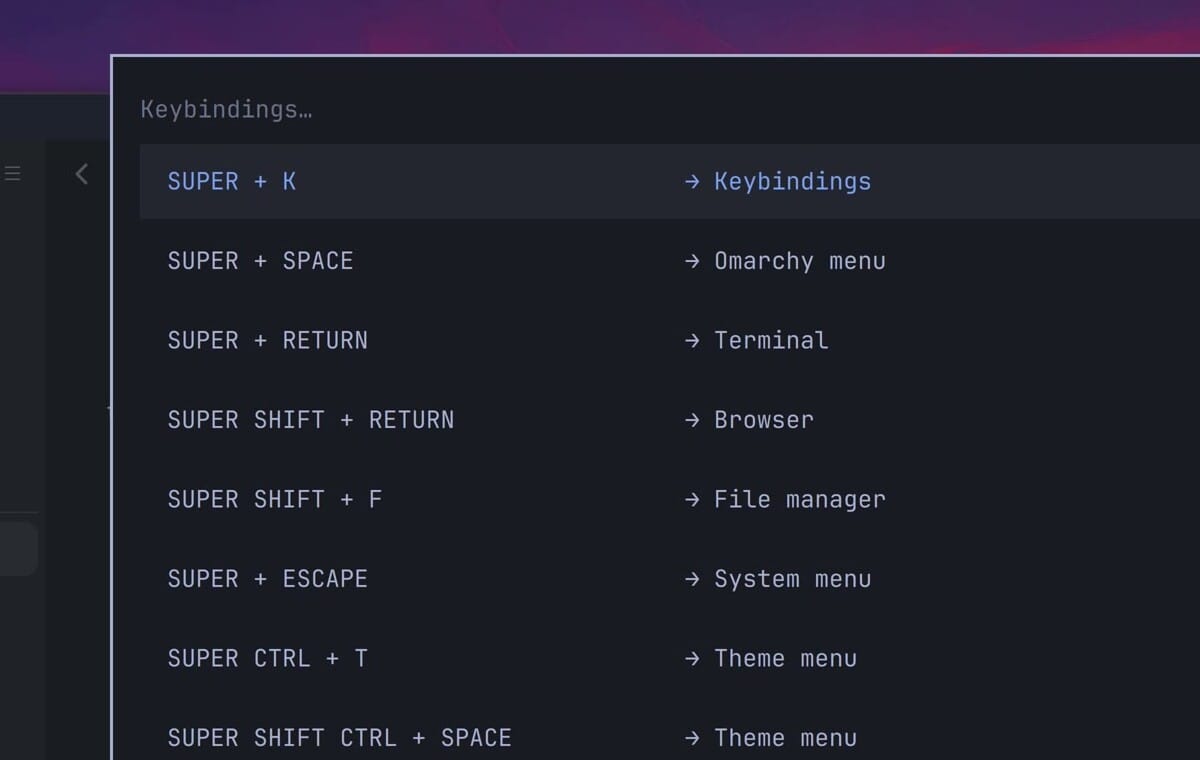
Press super k to see every shortcut in one list. Type a word to narrow it: copy shows super c for Universal copy, which copies in terminals as well as in other apps ( ctrl c still works in normal apps). The list writes the Enter key as RETURN, so SUPER + RETURN means super enter , which opens a terminal.
On Omarchy, ctrl alt delete closes every open window at once, where on Windows it leads to Task Manager. Save your work before you press it. Writer stops to ask about an unsaved document; Files and Chromium close without asking. Once the basics feel familiar, our list of Omarchy shortcuts to learn first and the guide to adding your own keyboard shortcuts cover more keys and how to make your own.
Put two windows side by side with tiling
With Chromium and Writer open, press super l . A notice says “Workspace layout set to tiling”, the titlebars and the dock go away, and the two windows split the screen into exact halves. Each tile keeps the full height of the screen, which suits a document beside a web page.
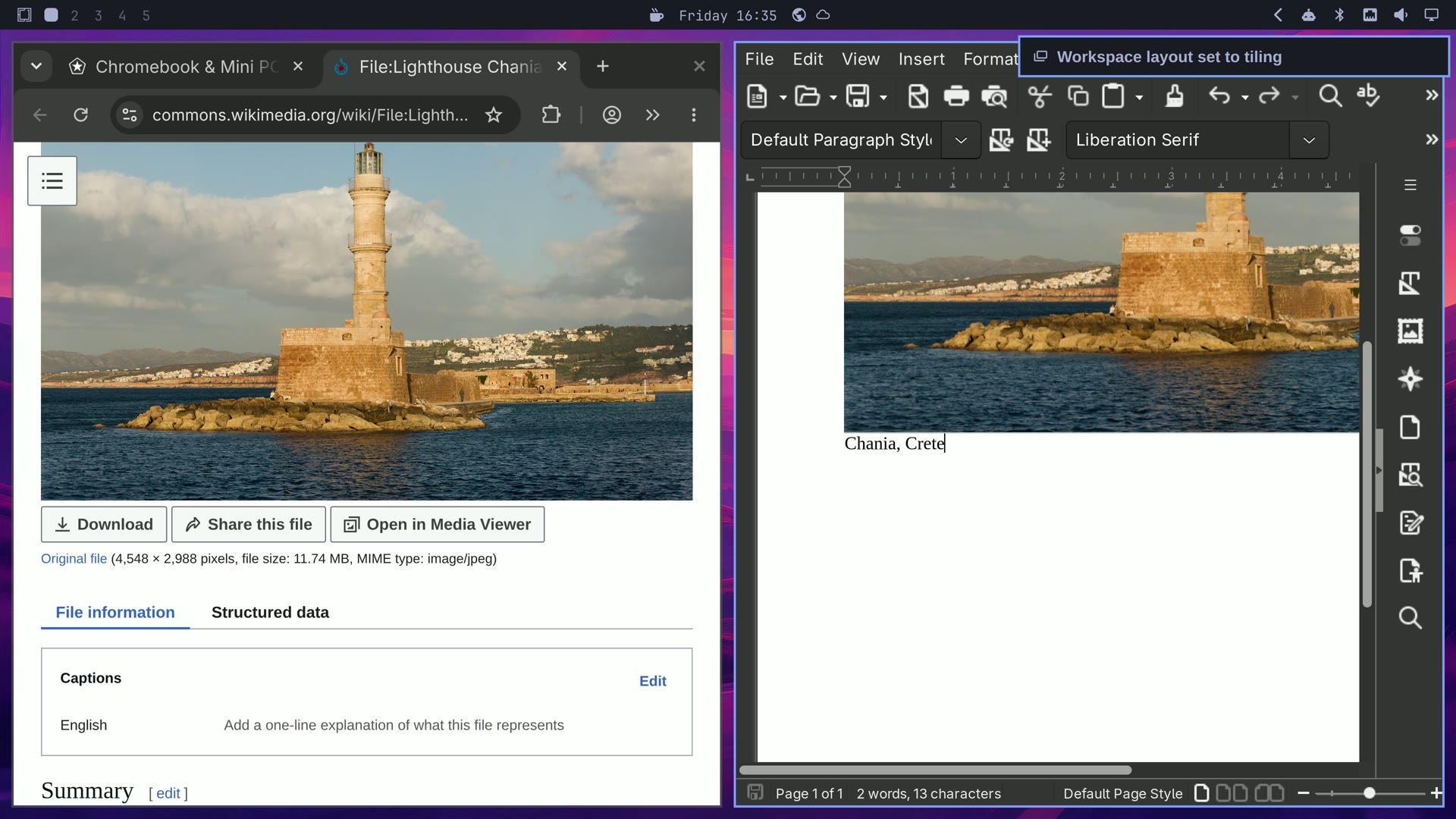
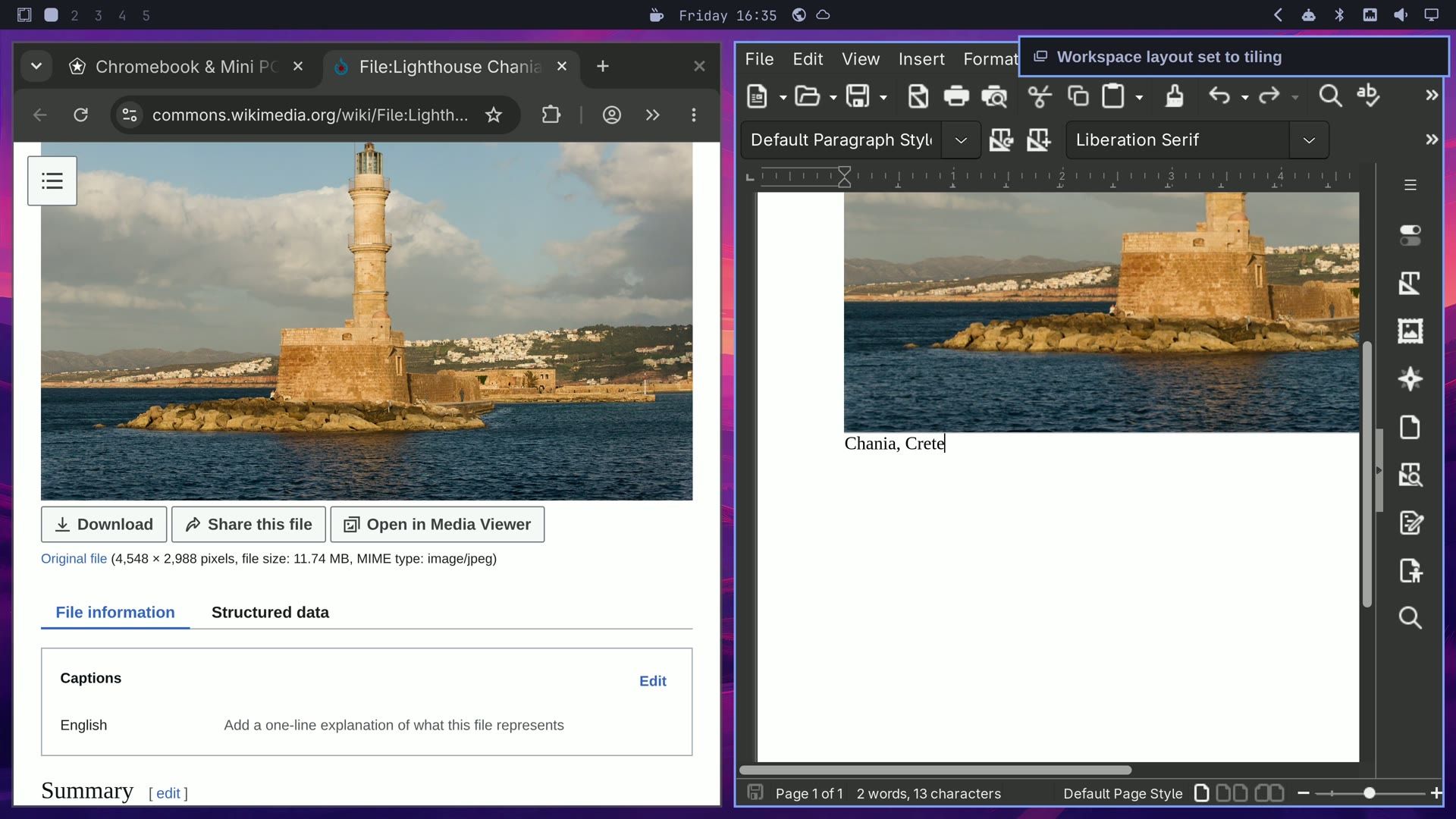
Press super alt l to switch back to floating windows, and the dock returns. The windows come back at a standard size, so drag them where you want them again. The third layout, scrolling, lines windows up in a row you move along; our guide to Omarchy’s scrolling layout covers it.
More Omarchy guides
If you are still deciding whether Omarchy is the right first Linux system for you, our comparison of Omarchy and Ubuntu for a first Linux desktop covers that choice.


